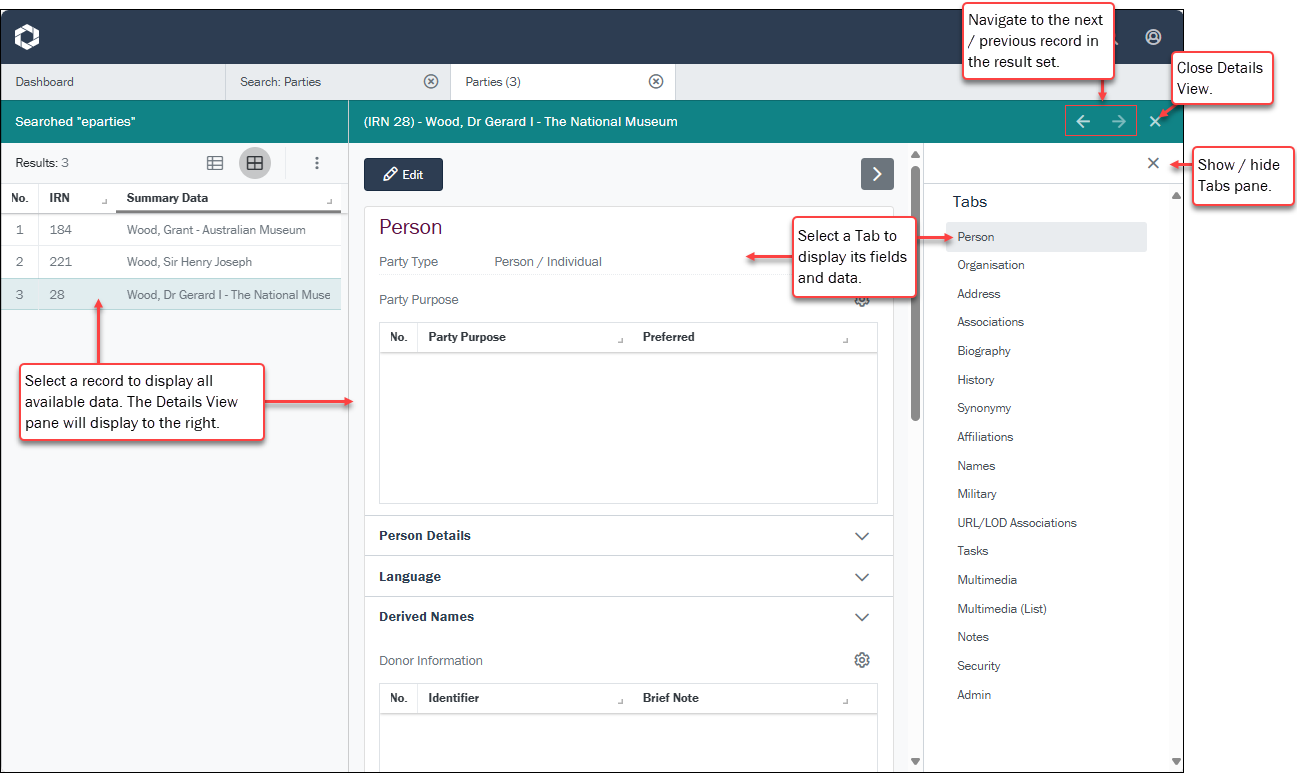
You've run a search and records are listed in Grid or List View showing a subset of fields. To view all data available for a record, select (click) the record to open a Details View pane to the right of the current Search workspace:
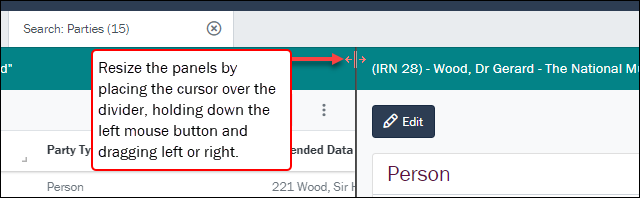
 Resizing the panels
The two panels can be resized1 by placing the cursor over the panel divider, holding down the left mouse button and dragging left or right:
A record's data is organized in Tabs and Field Groups.
About Tabs and Field Groups
The management of a collection can involve a vast amount of information about collection objects / items, people and organizations, events, administration and more. This information is stored in modules that are specific to the type of information: for instance, a Parties module holds records about people and organizations involved in some way with your collection.
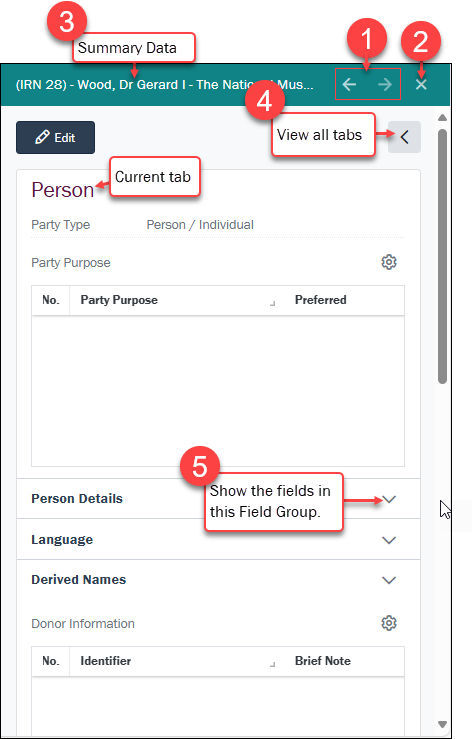
Within a record, information is organized in logical groupings on tabs. In a Parties record there is a tab for recording a person's name (Person), another for address details (Address), another for details about a person's roles (Roles), and another for recording biographical details (Biography), and so on. In the screenshot below, the tab displaying is Person, and it includes a number of Field Groups that group related fields under a heading, including:
- Person Details
- Language
- Derived Names
To view fields and the data in them, expand a Field Group (5 on the screenshot below):
|
# |
Option |
Details |
|---|---|---|
|
1 |
Navigate |
Select the previous / next arrow to display details for the previous / next record in the current search results list. |
|
2 |
Close |
Select to close the Details View pane and return to the current list of records. |
|
3 |
Summary Data |
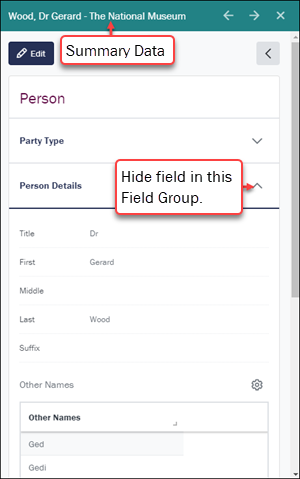
Every record has a Summary Data field. Summary Data is a combination of key data in a record (taken from one or more fields). Which field or combination of fields in a module is used to make up Summary Data can be specified by each institution (and implemented by Axiell developers).Example As we see above, in the Parties module the Summary Data for a Person party is a combination of data drawn from several fields:
Note: By default, when you run a search using the Simple Search form, your search terms are queried against Summary Data. If your search term is found in a record's Summary Data, that record is returned by your search. |
|
4 |
Tabs |
A record's data is organized in tabs and Field Groups. Select the arrow to view / hide the Tabs pane. |
|
5 |
Show / Hide fields |
Select to expand a Field Group and show its fields and data. Select again to close the Field Group. Example
In this example, the Person Details Field Group has been expanded:
|
|
6 |
Edit |
Select Details about editing records here. |
 to edit record details.
View and download media
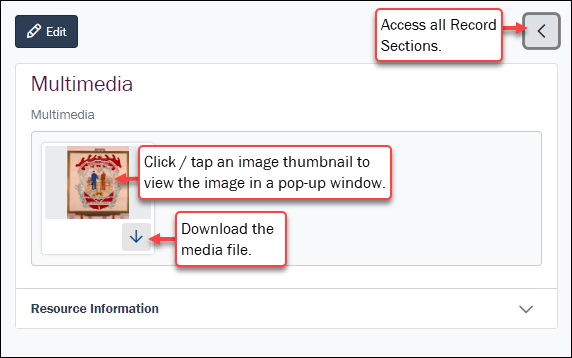
On the Multimedia tab:
-
Select a thumbnail to view the image in a popup window.
-
Select the Download
 icon to download the media file to your device's Downloads folder.
Tip: It is also possible to download media files when editing a record. Details here.